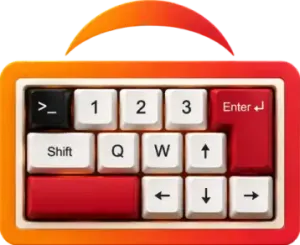
You already have the AI agents. The problem is the switching — a new terminal here, a lost context there, a prompt rewritten for the fourth time. F1 fixes that.
It gives VS Code a single panel that runs every AI coding CLI at once. Claude Code, Codex, Copilot, Cursor, Kiro, Kilo Code, OpenCode, Grok, Antigravity — or any command you define. All embedded, all alive, all a keypress away.
Press F1 to open it.
What’s inside
CLI Hub runs multiple agents side by side in real embedded terminals. Start any agent from a fuzzy launcher, switch sessions with the keyboard, and use built-in tools like Prompt, Translator, Keymaps, Commands, and Voice.
My Skills is a reusable prompt-pack system. Install skills from the marketplace, generate AGENTS.md / CLAUDE.md / DESIGN.md files with a wizard, or create your own templates once and use them across every CLI.
My Memory writes one .f1/ context map shared across every agent. It tracks your project structure and conventions so you stop paying tokens to re-explain your codebase every session.
Smart + Skills orients a new agent before you type. Toggle it on, pick an agent, and F1 builds a cheap code graph, writes working rules, primes the CLI, and cleans up once the agent replies.
The my-plus engine powers both My Memory and Smart + Skills under src/my-plus/. It keeps the context engine and orchestration decoupled from the host and webview, so new strategies and rule sets are easy to add.
Workflow
Keyboard shortcuts
CLI Hub
| Command | macOS | Windows / Linux |
|---|---|---|
| Focus CLI Hub | F1 |
F1 |
| Focus My Skills | ⌘ + 3 |
Ctrl + 3 |
| Maximize / Minimize Panel | ⌘ + ` |
Ctrl + ` |
| Side Panel toggle | Alt + CapsLock |
Alt + CapsLock |
| Focus CLI Panel | Alt + E |
Alt + E |
Tools
| Command | macOS | Windows / Linux |
|---|---|---|
| Open Prompt tool | Shift + F1 |
Shift + F1 |
| Open Translate tool | Shift + F2 |
Shift + F2 |
| Open Status/Use tool | Shift + F3 |
Shift + F3 |
| Open Keymaps tool | Shift + F4 |
Shift + F4 |
| Open Commands tool | Alt + F1 |
Alt + F1 |
| Execute prompt | ⌘ + Enter |
Ctrl + Enter |
| Toggle Prompt filter | Ctrl + Space |
Ctrl + Space |
Sessions
| Command | macOS | Windows / Linux |
|---|---|---|
| New CLI session | Alt + + |
Alt + + |
| Close current session | Alt + - |
Alt + - |
| Previous session | Shift + Tab |
Shift + Tab |
| Next session | Tab |
Tab |
| Open CLI selector | CapsLock |
CapsLock |
My Skills
| Command | macOS | Windows / Linux |
|---|---|---|
| Go to Create tab | Alt + 1 |
Alt + 1 |
| Go to Install tab | Alt + 2 |
Alt + 2 |
| Go to Local tab | Alt + 3 |
Alt + 3 |
Alt + Eand the My Skills shortcut require Lynx Keymap Pro.